If you want to know what to put on an event ticket so check-in never stalls, here is the short version: a single scannable QR code, the attendee's name, the event name with its date and start time, and the seat or session if you have them. Everything else is decoration. Get those four things right and a queue of a thousand people moves like water. Get them wrong and your door staff spend the first hour of your event squinting at phone screens and apologising.
A ticket is not a keepsake. It is a key that has to turn in a lock in under two seconds, in bad lighting, held by someone who is also carrying a coffee and a lanyard. Design it for that moment and nothing else.
What to put on an event ticket: the five things that actually matter
Most ticket templates are cluttered with things that look official and do nothing at the door. Strip it back to the essentials that a scanner, a steward, or a slightly frazzled attendee genuinely needs.
A unique QR code, one per ticket. Not one code for the whole order, not a shared code for a group. One person, one code, one scan. This is the single most important thing on the ticket, and it should be the biggest.
The attendee's name. It is your fallback when the code will not scan, and it lets door staff confirm they are checking in the right human. Named tickets also make transfers and guest lists traceable.
The event name, date and start time. Obvious, until someone turns up to Thursday's session with Friday's ticket. Put the date where a human reads it first.
The seat, session or zone. If your event has assigned seats, tracks, or timed entry, it belongs on the ticket in plain, large type. This is what stops the "which room am I in" bottleneck three metres past the scanner.
A short reference or order number. Tiny, in the corner, for support. Nobody reads it at the door, but you will bless it when someone emails about a lost ticket.
The QR code is the ticket, so treat it that way
QR code check-in has been measured at around 84 percent faster than manual name-list check-in, but only when the code behaves. A scan that works is a validation against your live attendee list: it confirms the ticket is real, unused, and for today, then marks it used so it cannot be passed to a friend at the next entrance. That is the whole job. The visual design around it should get out of the way.
| What scans fast | What jams the door |
|---|---|
| One unique code per attendee | One shared code for a whole group order |
| Large code with clear quiet space around it | Tiny code crammed next to a logo or border |
| High contrast, plain dark-on-light | Code printed over a photo or brand gradient |
| Code near the top of the phone screen or ticket | Code at the bottom, half hidden by the browser bar |
| Delivered in the email and to a wallet app | Buried three taps deep behind a login |
A practical print rule: if tickets are physical, keep the QR code at least 2.5 by 2.5 centimetres so a scanner locks on without a fight. On screen, make it large enough to fill the top third of a phone and tell people they can screenshot it. A screenshot survives a dead mobile signal in a car park; a "click here to view your ticket" link does not.
Why good QR codes still fail at the door (and the quick fixes)
Even a perfect code meets the real world at the entrance. The failures are boringly predictable, which is good news, because predictable problems have standing fixes.
Dim screens. Battery-saver mode dims phones automatically, and a dim screen is a low-contrast code. Fix: staff ask the attendee to turn brightness to maximum. It clears most first-attempt failures on its own.
Glare. Sunlight, venue spotlights and a cracked screen all scatter the pattern. Fix: tilt the phone a few degrees away from the light.
Crumpled print. A folded paper ticket distorts the squares. Fix: flatten it, or fall back to name search.
Wi-Fi that buckles at peak arrival. Venue Wi-Fi degrades during the arrival rush at roughly one in three events. Fix: use a check-in app that works offline and syncs later, so a signal drop never stops the queue.
The non-negotiable safety net is name search. Every scan point needs a fallback where a steward types a surname or email, confirms identity, and checks the person in by hand. This is exactly why the attendee's name belongs on the ticket and in your check-in tool: when the code will not cooperate, the name always will.
What Would Zero Booking Fees Save You?
eventcloud charges a flat subscription, not a cut of every ticket. Compare it with what your current platform takes.
A ticket has one job at the door: turn a person into a checked-in guest in the time it takes to say hello. Anything that slows that down is clutter, no matter how nice it looks.
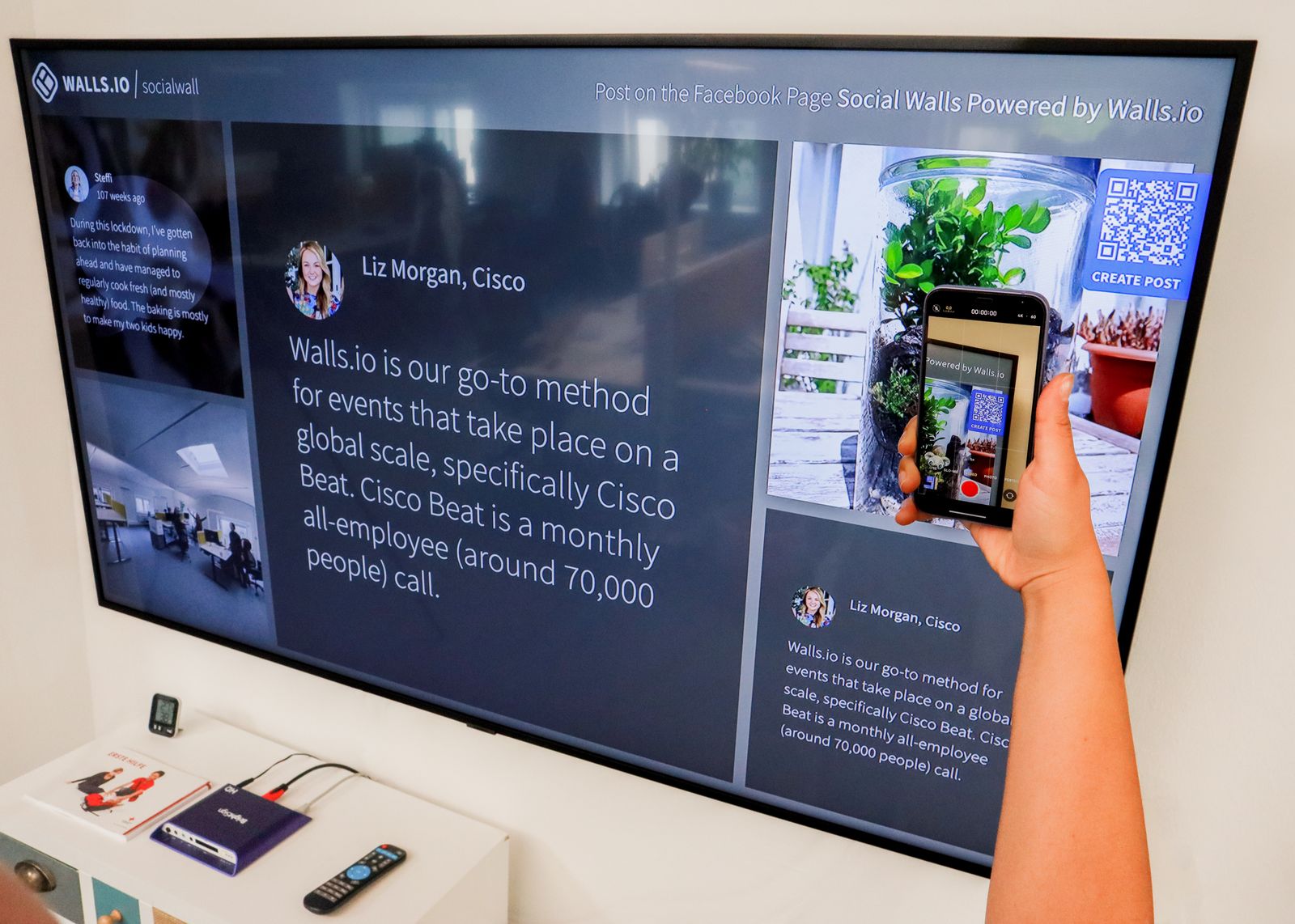
The two-second handshake: one code, one scan, one very relieved queue behind them · credit: Walls.io / Pexels
What to leave off an event ticket
Clutter is not neutral. Every extra element competes with the code for space and for the attendee's attention. Things that belong in the confirmation email, not on the ticket itself, include the full terms and conditions, a paragraph of parking directions, sponsor logos larger than the QR code, and a decorative background printed underneath the code. Put the map and the housekeeping in the email where people read them the night before. Keep the ticket itself as close to "code, name, when, where" as you can manage.
One more trap: do not make the ticket depend on being online to display. If your only delivery is a link to a hosted page, a weak signal at the door means no ticket. Send the QR code in the email body and offer an Apple Wallet or Google Wallet pass so it lives on the phone, not on your server.
Group and family orders: still one code each
The most common way to sabotage your own door is to issue a single QR code for a whole group order. It feels tidy: one buyer, one email, one code. Then four people arrive, three of them at different times, and only the person holding the phone can get in. The others queue at the resolution desk while your steward tries to work out whether Ticket 1 of 4 has already walked through.
Issue one unique code per attendee, even when one person paid for all of them. Send the buyer a set of codes they can forward, or better, collect each guest's name at checkout so every ticket is already personalised. Each code scans once and burns, which means no code can be screenshotted and reused at a second entrance, and your live count stays honest. The buyer still gets one confirmation email; what changes is that the door sees four individual, trackable tickets instead of one ambiguous blob. For events with children or plus-ones, a named code each also makes your capacity numbers real rather than a guess based on order counts.
A ticket that works on paper and on a phone
The same layout has to survive both a printout and a five-year-old Android with a cracked screen. That means the code stays large and high-contrast in both formats, the name and event details are readable without zooming, and the seat or session is impossible to miss. If your ticketing platform lets you preview the exact ticket an attendee receives and lets your door staff scan it offline with a name-search fallback, you have removed the two things that cause queues. You can see how that check-in flow fits together across scanning, wallets and offline mode on the eventcloud check-in feature, and how tickets, badges and registration connect on the wider product.
Design the ticket for the two seconds at the door and everything downstream gets easier. Want the door itself to keep pace? Start with how eventcloud handles check-in.